---
title: 'Powershell: Radio Button Events'
url: 'https://dowerchin.com/blog/radio-button-events'
markdown: 'https://dowerchin.com/blog/radio-button-events.md'
date: '2024-02-19'
description: "In this tutorial I show how to setup events for Radio Buttons for a WPF GUI, and I also show how you can enable/disable other controls using the radio buttons as toggles. The first thing we need is a WPF form to play around with. Let's create the following: You can see this simple form is just 2 r…"
taxonomy:
category:
- Powershell
tag:
- PowerShell
- Tutorial
---
# Powershell: Radio Button Events
In this tutorial I show how to setup events for Radio Buttons for a WPF GUI, and I also show how you can enable/disable other controls using the radio buttons as toggles.
The first thing we need is a WPF form to play around with. Let's create the following:
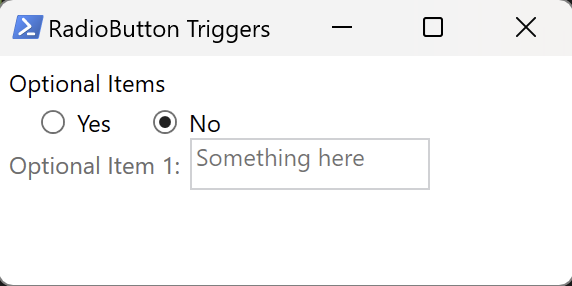
You can see this simple form is just 2 radio buttons, a disabled label, and a disabled textbox.
I created this from a WPF Application from Visual Studio 2022, you can load the xaml into a WPF, but I decided for this tutorial, I'll embed the source. I did have to modify the xaml, since VS puts addtional attributes into the xaml header which Powershell doesn't like.
Let's start by creating a new powershell file, "radioEnableExample.ps1" and pasting in the following code:
```powershell
Add-Type -AssemblyName PresentationFramework
[xml]$xaml = @"
"@
```
The code here adds in the assebly we need to do UI's, the "PresentationFramework", and then we bulk load our $xaml variable with the xml needed for our form. Now let us conver the xaml data to a GUI, add the following code next:
```powershell
$reader=(New-Object System.Xml.XmlNodeReader $xaml)
$Window=[Windows.Markup.XamlReader]::Load( $reader )
```
The code will put our xaml data through a XmlNodeReader which we then convert into a Window object.
Next, we need to process our controls into variables we can reference and use:
```powershell
$xaml.SelectNodes("//*[@*[contains(translate(name(.),'n','N'),'Name')]]") | ForEach {
Set-Variable -Name "var_$($_.Name)" -Value $Window.FindName($_.Name) -Scope Script
}
```
I've looked for all the **x:Name** objects in our xaml, and prefexed a "**var\_**" to the names to make it more obvious and consistent to use.
Now let's create a function to handle our event:
```powershell
[System.Windows.RoutedEventHandler]$Script:CheckedEventHandler = {
if ($_.source.Content -eq "Yes") {
Write-Host "Enabling..."
$var_lblOption01.isEnabled = $true
$var_txtOption01.isEnabled = $true
}
else {
Write-Host "DIsabling..."
$var_lblOption01.isEnabled = $false
$var_txtOption01.isEnabled = $false
}
}
```
What the above function does is react to a CheckedEventHandler and inside, I am looking for the **Content** of the radio buttons, in this example, you'll see the **Content** is either going to be "**Yes**" or "**No**". So, the if statement will toggle my 2 disabled controls, either on or off by setting the 2 controls, lblOption1 and txtOption01 **isEnabled** property to $true or $false.
Now we attach this event function to our Stack Panel which houses our radio buttons. In this case, my Stack Panel is called "**pnlOptionalItems**".
```powershell
$var_pnlOptionalItems.AddHandler([System.Windows.Controls.RadioButton]::CheckedEvent, $CheckedEventHandler)
```
Lastly, we show the we show our window:
```powershell
$Window.Showdialog() | Out-Null
```
Now if you run it, you should be able to toggle the label and textbox based on the radio button options. Hopefully you found this useful. If you want the full source, check it out on my github repo:
---
## Navigation
- Parent: [Home](https://dowerchin.com/index.md)
- Previous: [Custom Icon for PowerShell WPF App](https://dowerchin.com/blog/custom-icon-for-powershell-wpf-app.md)
- Next: [Using Images in Flutter](https://dowerchin.com/blog/test-youtube-link.md)